

Where you see a preview
On GitHub
- The Flowmaps check. Its title is the result, such as “2 flows change”, or when not every touched flow could be previewed, “5 of 6 touched flows previewed · 2 changed” with the reason. Its Details link opens the pull request’s page in Flowmaps.
- One comment. When a preview finds something to report, Flowmaps posts one comment, headed “Flowmaps” and the same result. It names the base branch and the commits compared, then lists each changed flow with its change counts and a short summary of what changed, with the full lines under Details and a link to See before and after for each flow. Later pushes edit this comment instead of adding new ones. A preview with nothing to report posts no comment. Flowmaps may also post a separate reply when someone it can’t start work for asks for a preview (below).
In Flowmaps
Open Changes in the sidebar and choose the pull request, or follow the check’s link.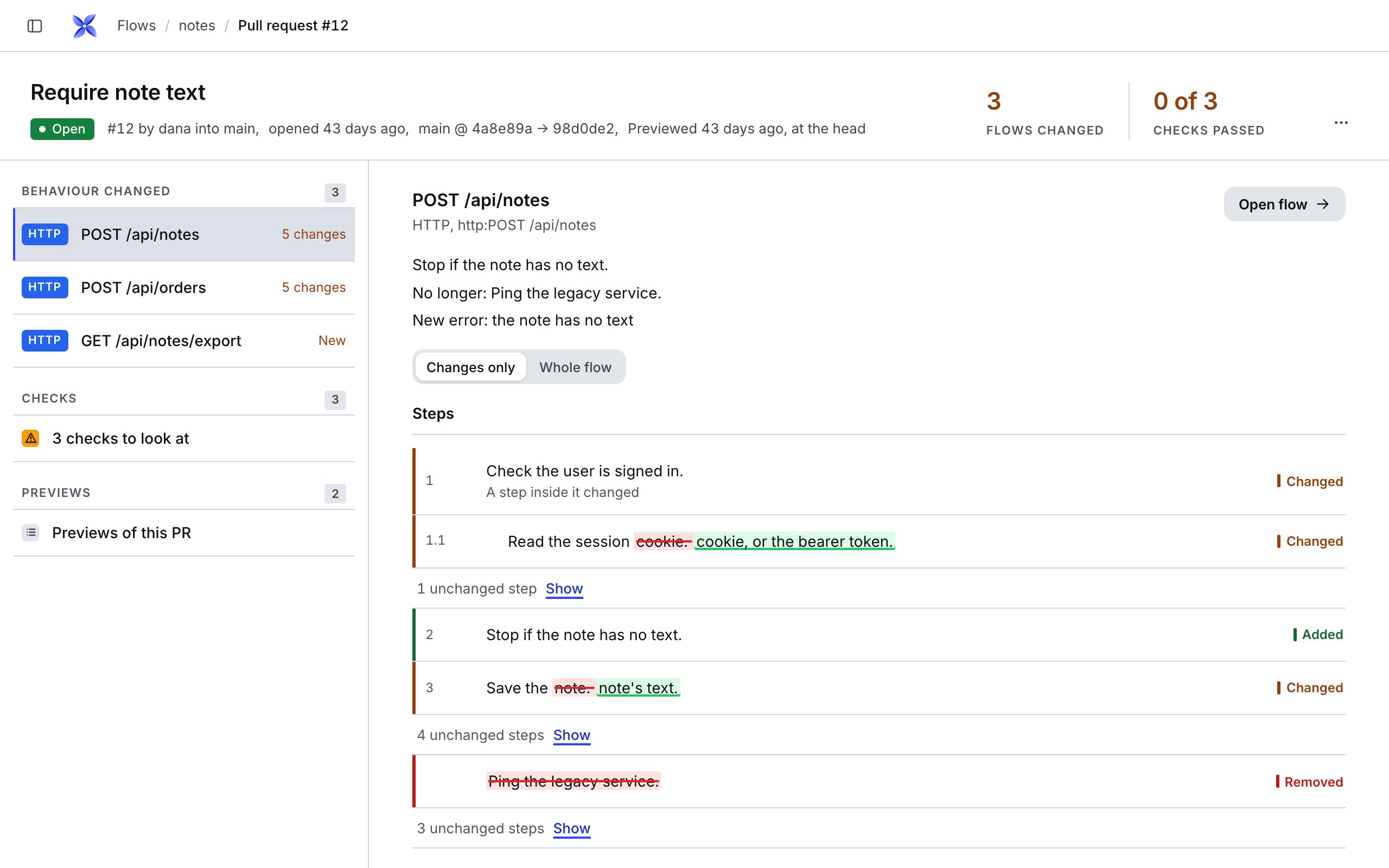
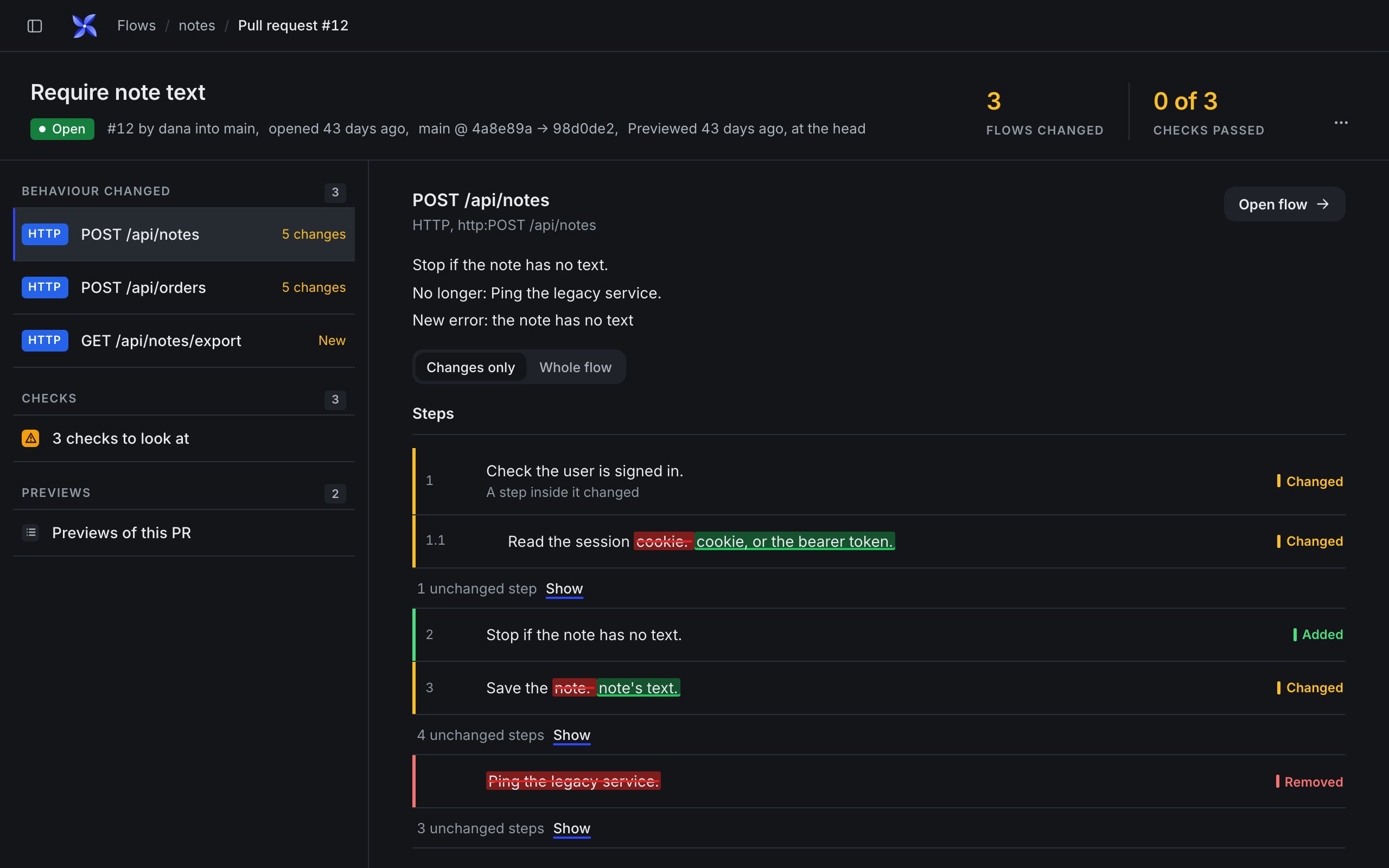
A pull request's page: the flows it changes, the checks, and the selected flow's changes.
- The flows it changes. Flows the pull request touches but doesn’t change aren’t listed; the header counts them.
- Checks. Three checks that the preview didn’t miss anything:
- Every touched flow was previewed, or which weren’t and why.
- Every changed handler has a flow: endpoints whose handler the pull request changes but that aren’t mapped yet.
- No endpoints added or removed: endpoints the pull request adds or removes.
- Previews of this PR, one per previewed push, newest first.
- Previewing, while a preview is running, with each flow’s stage.
Step-by-step compare
Choose a changed step to compare it Before and After: its sentence, explanation, details, business facts and evidence, with the words that changed marked. Previous change and Next change step through the flow’s changes in order. From the pane you can also switch to the Flow map view of either side.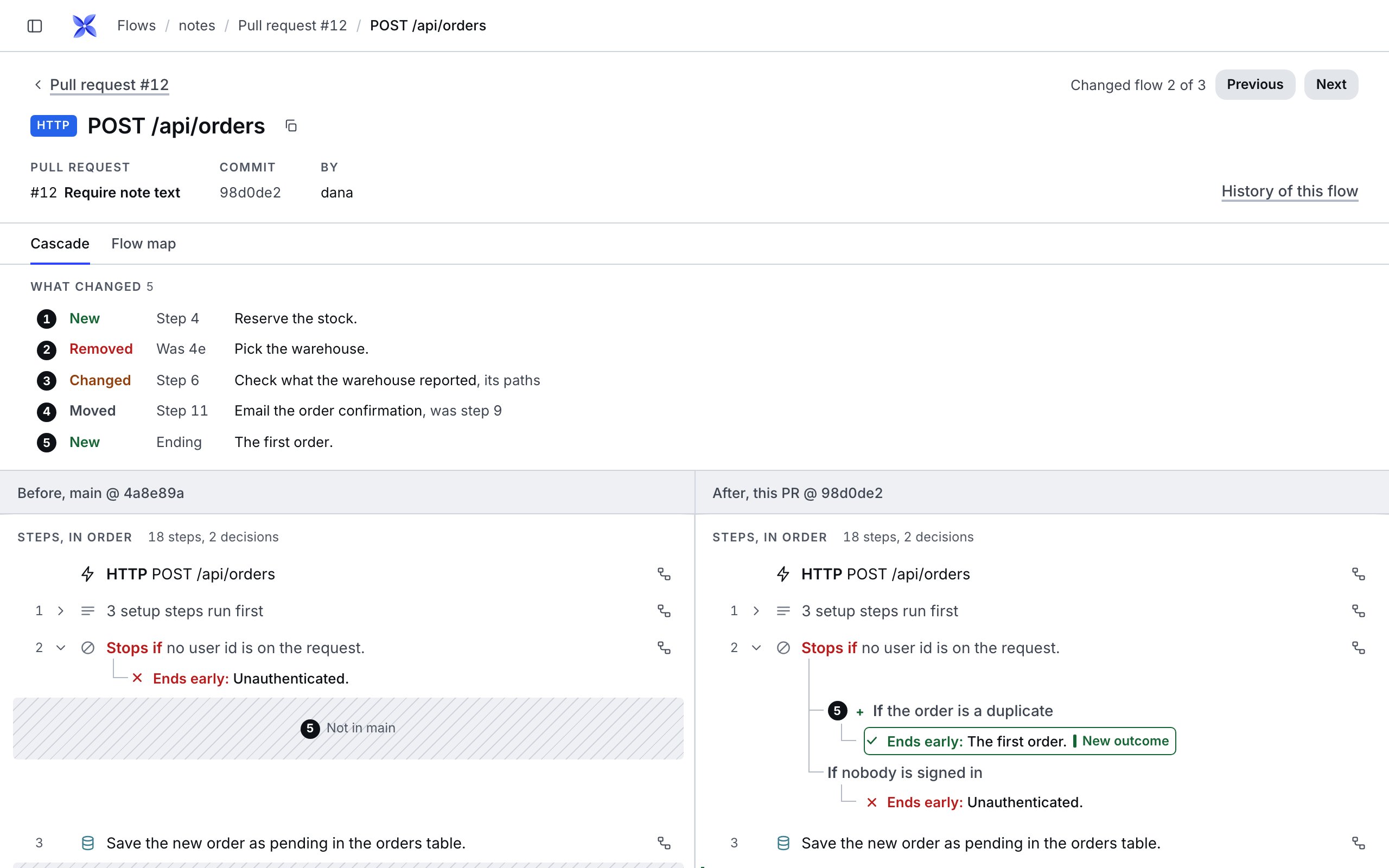
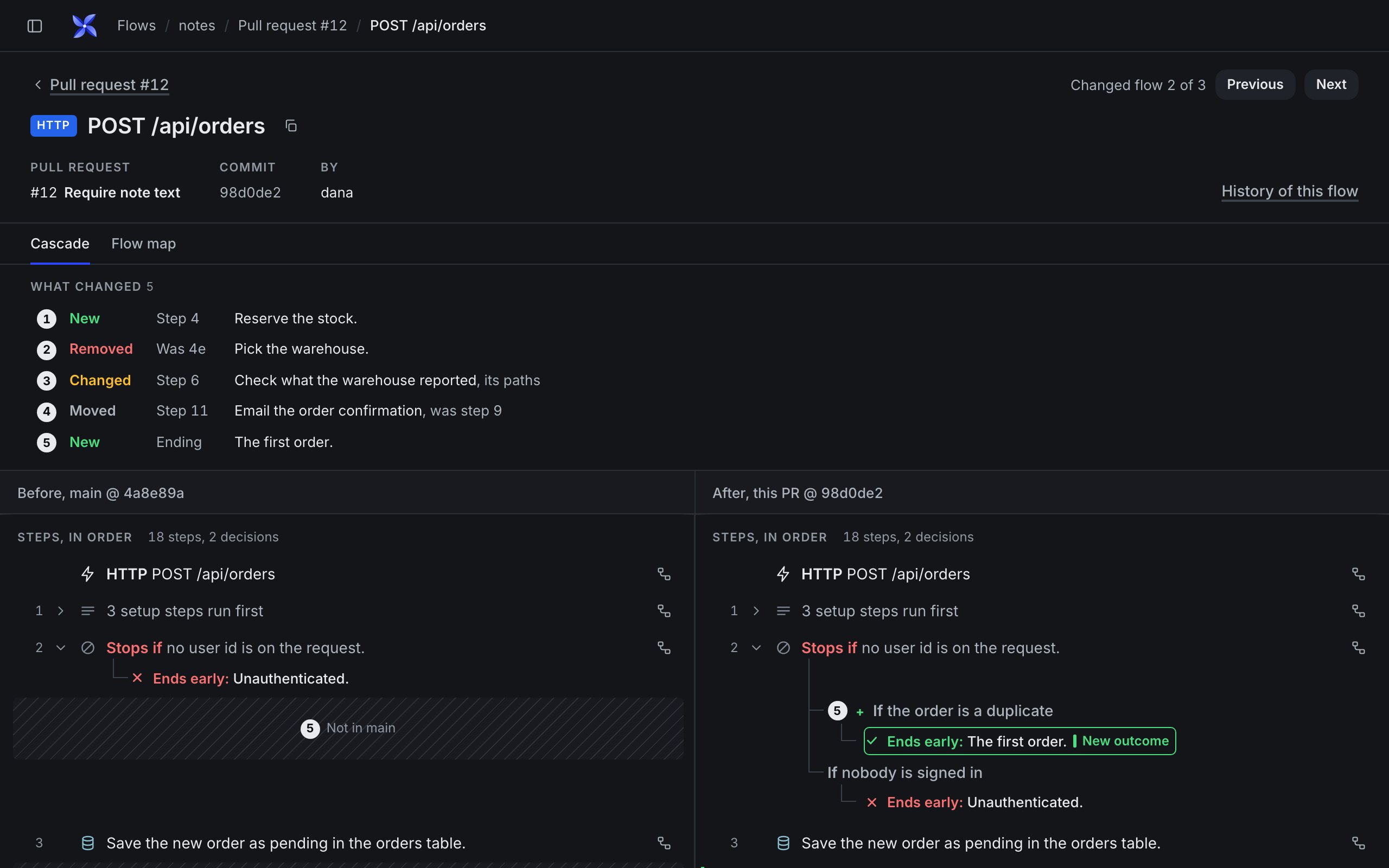
Comparing a step before and after the pull request, with its changed words marked.
On request or automatic
Previews run either on every push (automatic) or only when someone asks (on request). Which applies depends on your plan, then your settings:
Where the plan allows automatic previews, owners and admins choose:
- Settings › PR previews: Each repo decides, or On request in every repo. The workspace’s choice wins over the repos’.
- A repo’s Settings tab: Preview every PR automatically, on or off. See Repo settings.
- One pull request: on its page in Flowmaps, Review every push turns automatic previews off or on for that pull request alone. The page shows where the current setting comes from, such as “On request (repo setting)”, and who last changed it.
Request a preview
On request, a pull request is previewed when someone either:- comments
/flowmapson the pull request, or - presses Preview on its Flowmaps check on GitHub.
Who can start a preview
A preview uses the credits of the Flowmaps account that maps the repo, so only people that account knows can start one from GitHub:- Write access on GitHub. You need write access to the repo on GitHub (write, maintain or admin). A comment or press from anyone else is ignored, with no reply.
- On a team’s repo, you must also be a current member of the team, with your GitHub account linked in Flowmaps.
- On a personal account’s repo, only the account’s owner can, with their GitHub account linked in Flowmaps.
Pull requests from a fork
A pull request from a fork isn’t previewed on its own: its check reads “From a fork, not previewed”. It’s previewed only after someone with write access to the repo presses Preview on the check, and that press covers that exact commit; a new push needs another press. A/flowmaps comment doesn’t start a preview on a pull request from a fork.
When a pull request isn’t previewed
The check says why:- “Draft, not previewed”: mark it ready for review, or press Preview.
- “Not previewed: previews are on request”: comment
/flowmapsor press Preview. - “Reviews off, not previewed”: Review every push is off for this pull request.
- “From a fork, not previewed”: someone with write access presses Preview for this commit; see above.
- “Not previewed: flows are mapped on the default branch”: it targets another branch. A pull request in a stack is the exception; see Stacked PRs.
- “No flows mapped in this repo yet”: map the repo, and later pull requests show their flow changes.
- “Not previewed: this plan has no PR previews” or “this repo is past the plan’s repos”: see Plans.
Endpoints the pull request touches but isn’t mapped
When a pull request adds an endpoint, or changes the handler of one that isn’t mapped, the preview lists it as “Not mapped yet”. The check then offers Map touched, which maps those endpoints on the default branch; the preview runs again when that’s done.What a preview costs
A preview uses credits only for the flows its diff touches. Flows it doesn’t touch are carried forward with no credits, and a touched flow whose cited lines didn’t change is checked cheaply before anything is traced. When previews are on request, the pull request’s page in Flowmaps shows what a preview here usually uses, such as “About 400 credits”. If your balance runs out, the flows left aren’t previewed. On GitHub the check reads like “5 of 6 touched flows previewed · out of credits” and the comment says “1 flow not previewed: out of credits”. The pull request’s page in Flowmaps says “Not previewed: out of credits” and when credits reset. When it merges, the pull request’s preview is reused, so you don’t pay twice for the same flows. See What happens when a PR merges and Credits and usage.Next steps
Stacked PRs
How each PR in a stack is previewed.
Merges
What happens to flows when a pull request merges.