

The Connections graph
Choose Connections in the sidebar.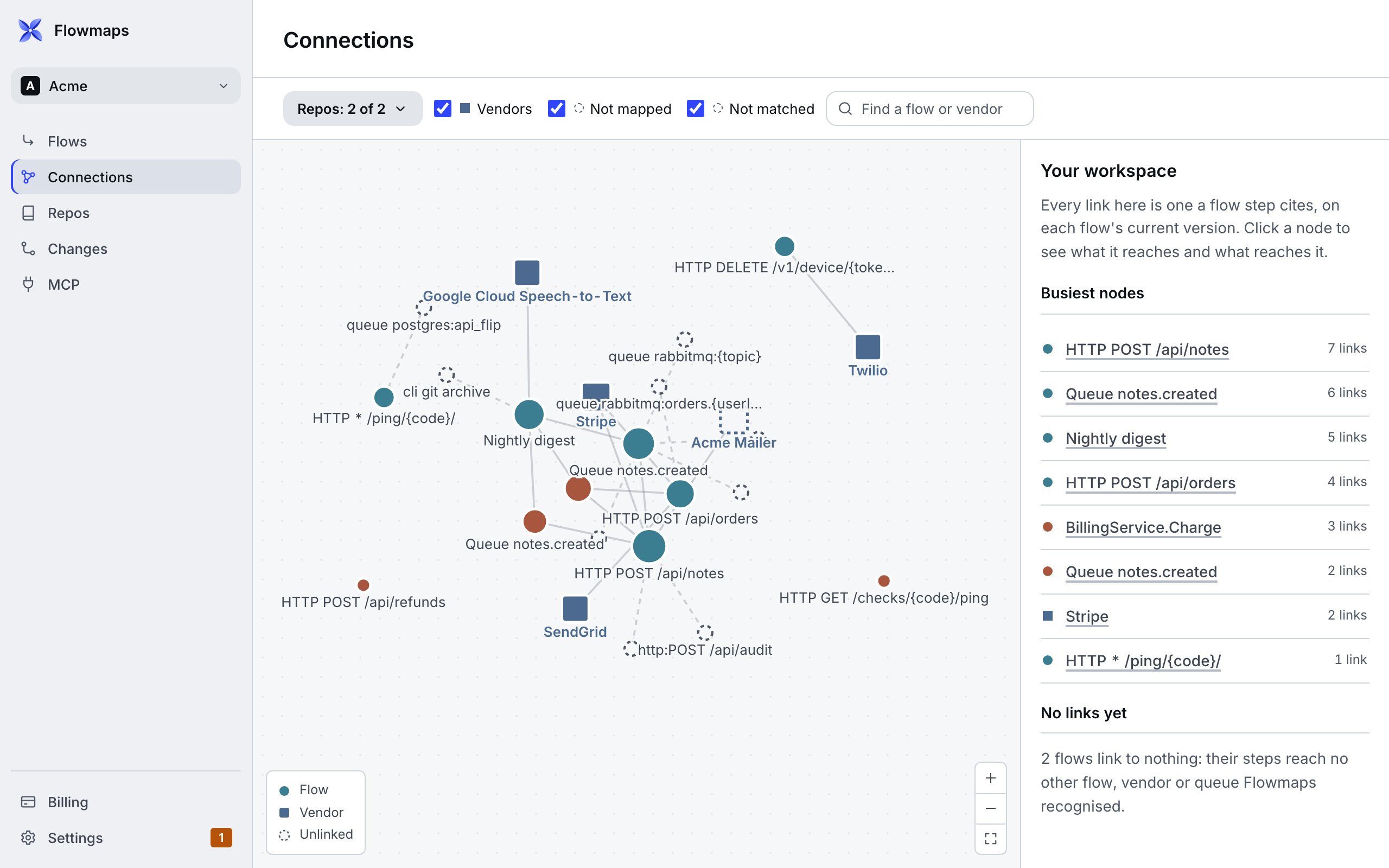
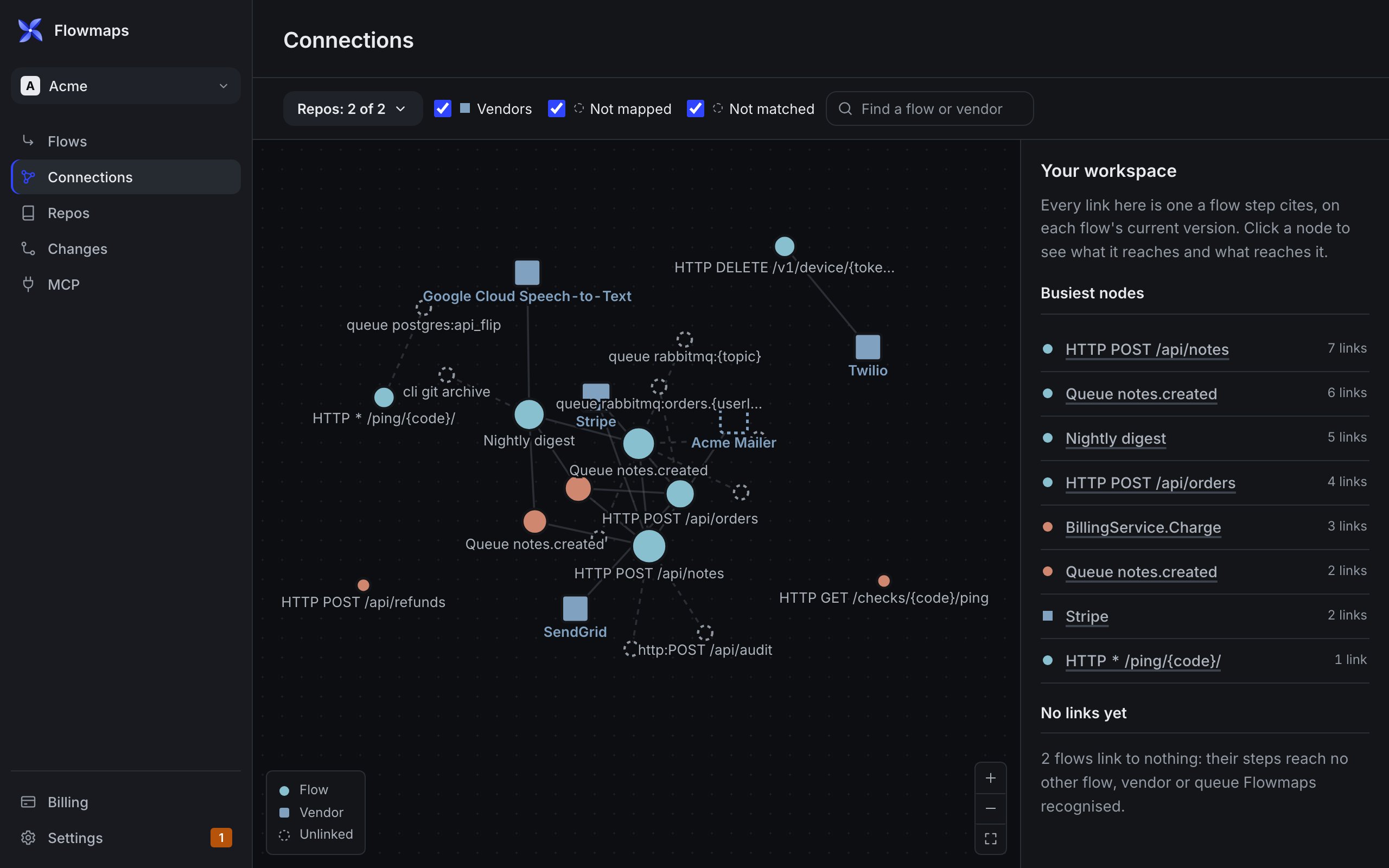
Connections: flows from every repo, linked to each other and to vendors, with a panel for the selected node.
- Flows, coloured by repo.
- Vendors: third-party services such as Stripe or Twilio.
- Not mapped: endpoints a step reaches that have no flow yet.
- Not matched: targets Flowmaps couldn’t match to a flow, endpoint or vendor with confidence, so it left them unmatched rather than guess.
Explore it
- Show toggles Vendors, Not mapped and Not matched on and off.
- Find a flow or vendor searches the graph.
- Repos opens a picker: tick repos to show or hide them, Show all or Hide all, and Pin the repos you look at most so they stay at the top.
- Click a node to open its panel. With nothing selected, the panel sums up the workspace and lists the Busiest nodes.
- A flow: its repo, Behind the branch head if it’s stale, and Open flow.
- An unmapped endpoint: Map this endpoint, which opens the repo’s endpoint list.
- An unmatched target: “Not matched”, with the reason.
- A vendor: its category, a Pending vendor badge if it’s waiting for a decision, and a Dependencies link for each repo that uses it.
External dependencies
Each repo has a page of the third-party services it uses. Open it from the Vendors count on the repo’s row on Repos, or from All dependencies in a flow’s … menu.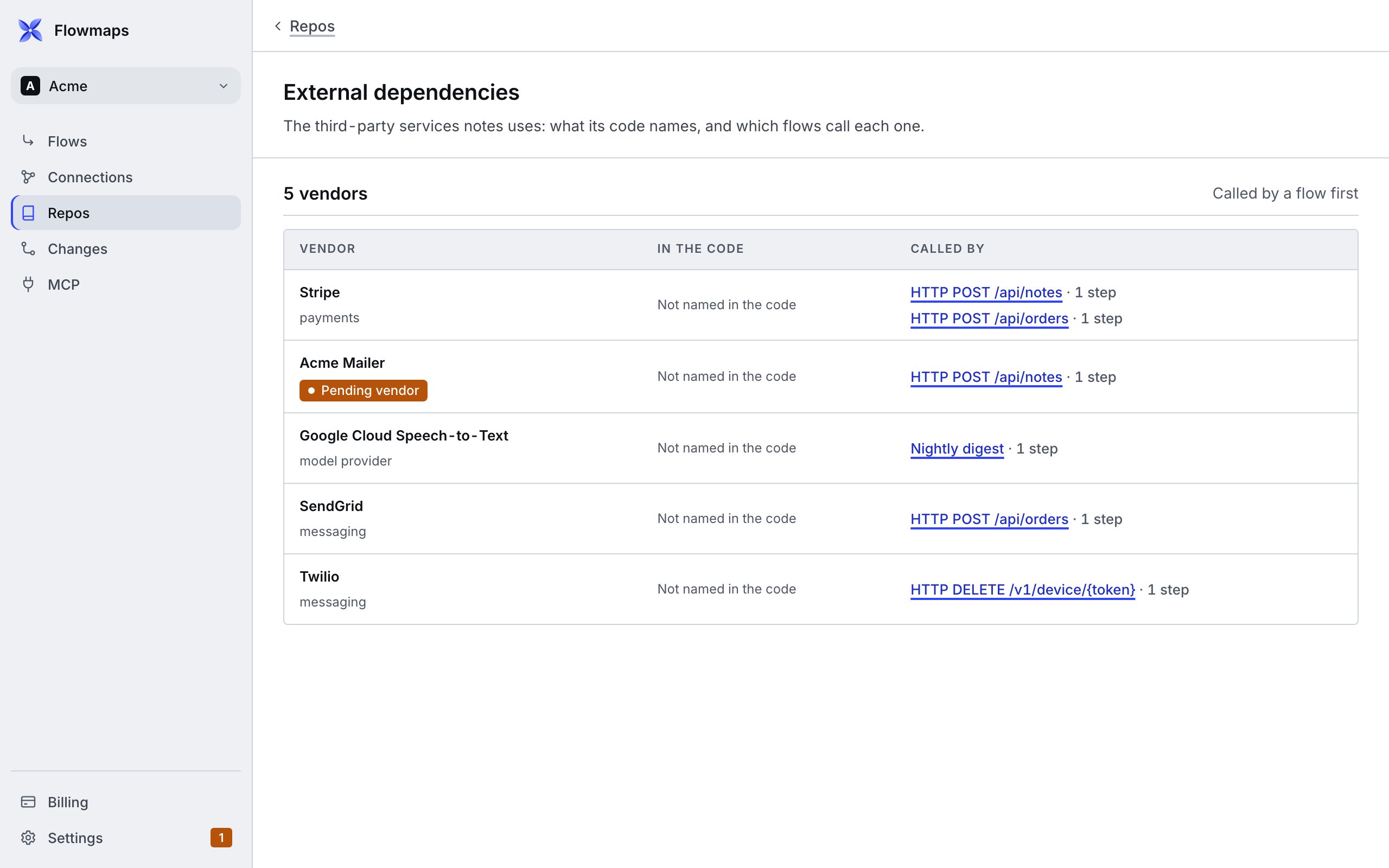
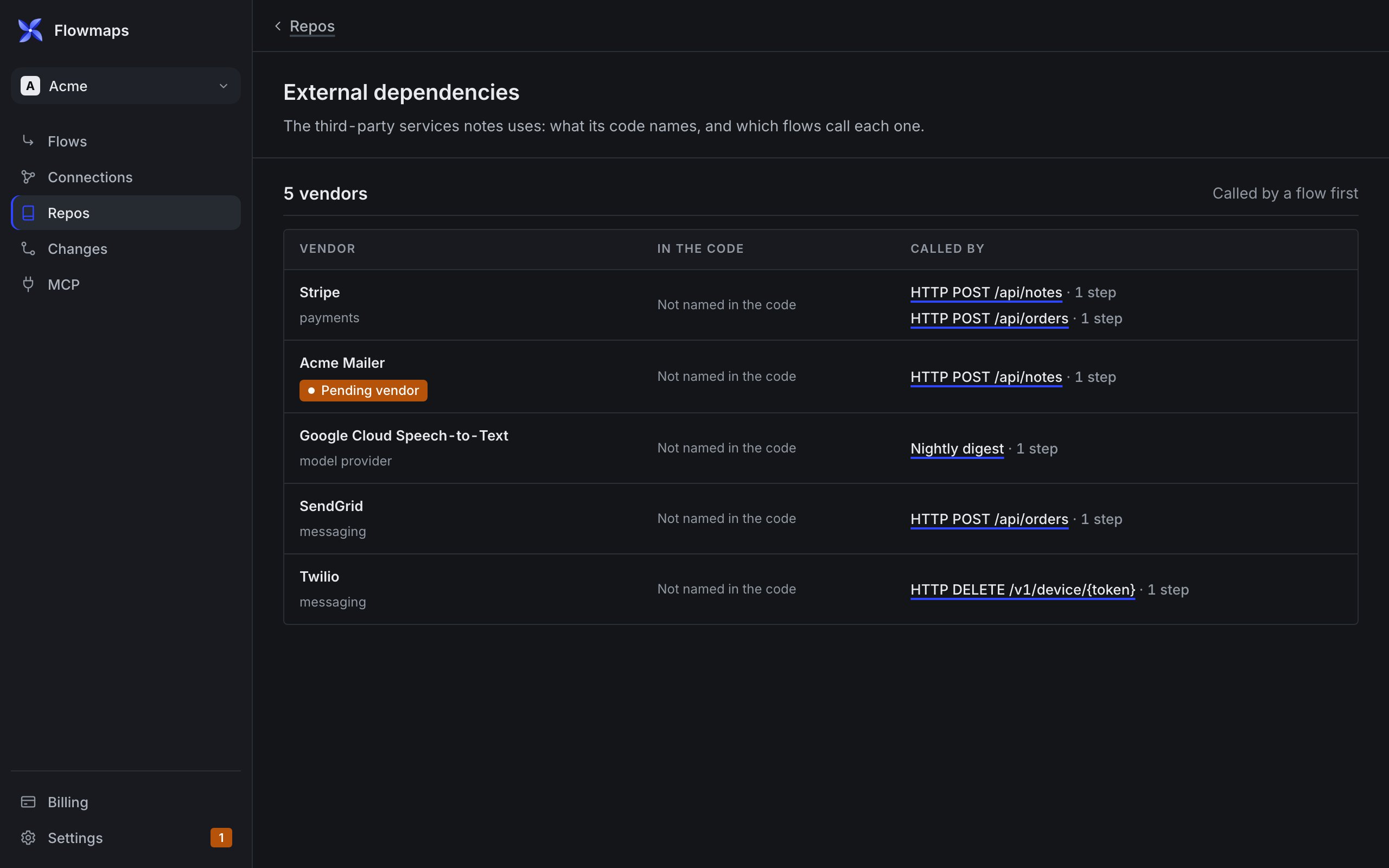
External dependencies: each vendor, where the code names it, and the flows that call it.
A vendor named in the code with no flow calling it often means the code that calls it isn’t mapped yet. Map more endpoints and check again.
Pending vendors
When a step calls a service Flowmaps’ list of known vendors doesn’t include, the name it used becomes a pending vendor. Pending vendors wait in Settings › Vendors; the Settings link in the sidebar shows how many. Each one under Needs an answer shows the name, how many mapped flows use it, and where the code shows it (for example a host at a file and line, in a repo, at a commit). For each one, either:- Approve it. Give it a Name (or keep the one shown) and a Category, and choose Approve. It becomes a workspace vendor.
- Merge it into a known vendor. Type the vendor’s name in Or merge into a known vendor and choose Merge, for a name that’s another spelling of a vendor Flowmaps already knows, such as a product name for its parent service.
vendor_proposals MCP tool, but deciding them happens in the app.
Unresolved links
Flowmaps would rather leave a link unresolved than draw a wrong one. On a step, an unresolved target says it “links nowhere”, with the reason, and sometimes a hint. On Connections it’s a Not matched node. Common reasons are a target named at runtime, or a service whose entry points aren’t in any repo the workspace maps. Links fill in as more flows are mapped, so adding and mapping the repo that serves a target is often what resolves it.Next steps
The flow page
How links show on each step.
Recipes for agents
Find every call to a vendor from your agent.