

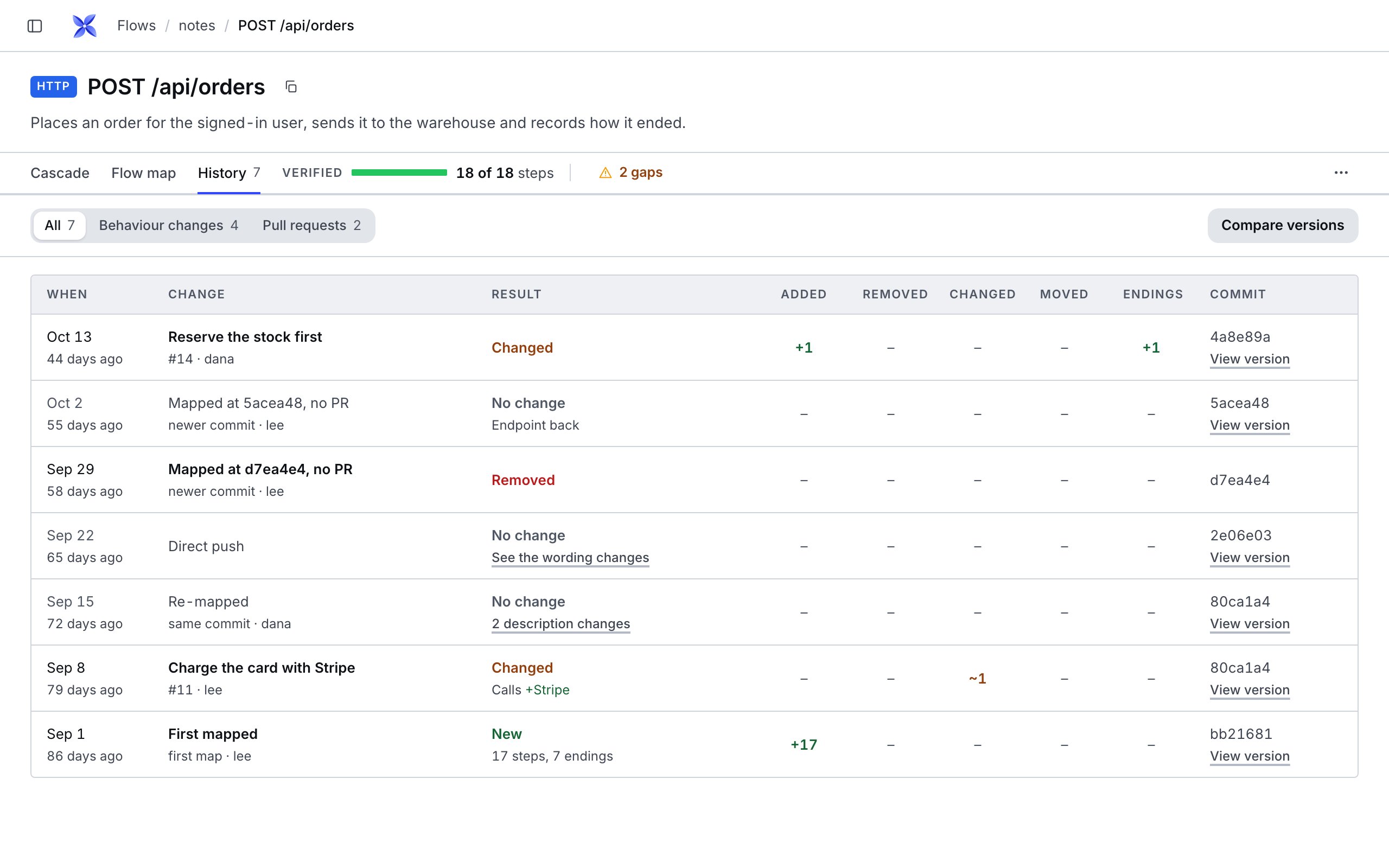
A flow's History: each change with its pull request, result, counts of steps changed and its commit.
What each row shows
- When: the date and time of the change.
- Change: what made it. A merged pull request shows its title, with its number, author and who approved it (read live from GitHub). A push straight to the default branch shows Direct push, with its commits and their authors. Other rows read First mapped, “Mapped at (commit), no PR”, Re-mapped, or Updated for a change to the stored version without a new map (such as a re-check), with who ran it.
- Result: Changed, New, Removed or No change, with a short line of facts:
- “Calls +Stripe −PayPal” when the flow started or stopped calling a vendor or service.
- “Includes earlier merges” when one update took in several merges at once.
- “Endpoint back” when an endpoint that had been removed returned.
- “See the wording changes” when only the words changed.
- On a first map, how many steps and endings the flow has.
- Added, Removed, Changed, Moved: how many steps each change added, removed, changed or moved.
- Endings: endings added (+), changed (~) or removed (−).
- Commit: the commit the version belongs to, linked to GitHub, with View version and the diff on GitHub.
Filter the history
Use Show at the top:- All: every entry.
- Behaviour changes: only entries that changed what the flow does.
- Pull requests: only entries made by merged pull requests.
Open one change
Choose a row’s title to open it. The page shows the flow Before and After that change, side by side, with the changed steps marked. Choose a changed line to see that step in both versions. A pull request’s entry links back to its page under Changes.View a flow as it was
Choose View version on a row to open the whole flow at that version. A note at the top says “The flow as it was on (date) at (commit), after (the pull request)”. It also says “Not the current version. Line numbers read against (commit)”, and offers Browse the code at (commit) on GitHub. Choose View the current version to go back.Compare two versions
1
Choose Compare versions
At the top right of the History tab.
2
Pick two rows
Tick the two versions you want. The bar reads “Ready to compare”.
3
Choose Compare
The page shows the older version before and the newer after, with every step, ending and call that differs between them.
When history starts
A flow’s history starts when it’s first mapped. Entries come from maps, re-maps, merges and direct pushes to the default branch. A flow with no entries yet says “No history yet” and adds one with its next map, merge or push. A merge that didn’t touch a flow’s code moves its line numbers but doesn’t add a history entry. Coding agents read the same history with theflow_history MCP tool, and get_flow with at returns a past version. See MCP tools.
Next steps
What happens when a PR merges
How merges update flows and record history.
Find flows
Search and filter every mapped flow.