

- You link your GitHub account. Choose Connect GitHub and authorize Flowmaps on GitHub. This tells Flowmaps who you are on GitHub, so it shows you only the repos you can read there.
- The App is installed where your repos live. Someone installs Flowmaps Bot on a GitHub account or organization and chooses which of its repos the App can reach. The install doesn’t belong to any one Flowmaps account, so it serves everyone who uses Flowmaps with those repos.
Connect GitHub and add your first repo
1
Open Add a repo
Go to Repos and choose Add a repo. Until your GitHub account is linked, the dialog says “Connect GitHub to see the repos you can read there.”
2
Connect GitHub
Choose Connect GitHub and authorize Flowmaps on GitHub. You come back to a page that says “Linked your GitHub account, (your login). Add a repo lists the repos you can read where Flowmaps Bot is installed.”If your organization uses SAML single sign-on, sign in to it on GitHub first, then connect again.
3
Install the App, if it isn't installed yet
If Flowmaps Bot isn’t on the account or organization that owns your repo, choose Install on GitHub. On GitHub, pick the account or organization, then choose All repositories or Only select repositories and pick the repos.Installing on an organization needs an owner of that organization, or an admin of the repos you pick, on GitHub. If you aren’t one, GitHub lets you request the installation. Flowmaps then says “Waiting for an owner of the org to approve the install. Connect again once they have.”
4
Add the repo
Choose Back to Repos. The dialog lists the repos you can read in each place Flowmaps Bot is installed, with each one’s default branch. Search, then choose Add on the repo. It appears on Repos, ready for Find endpoints.
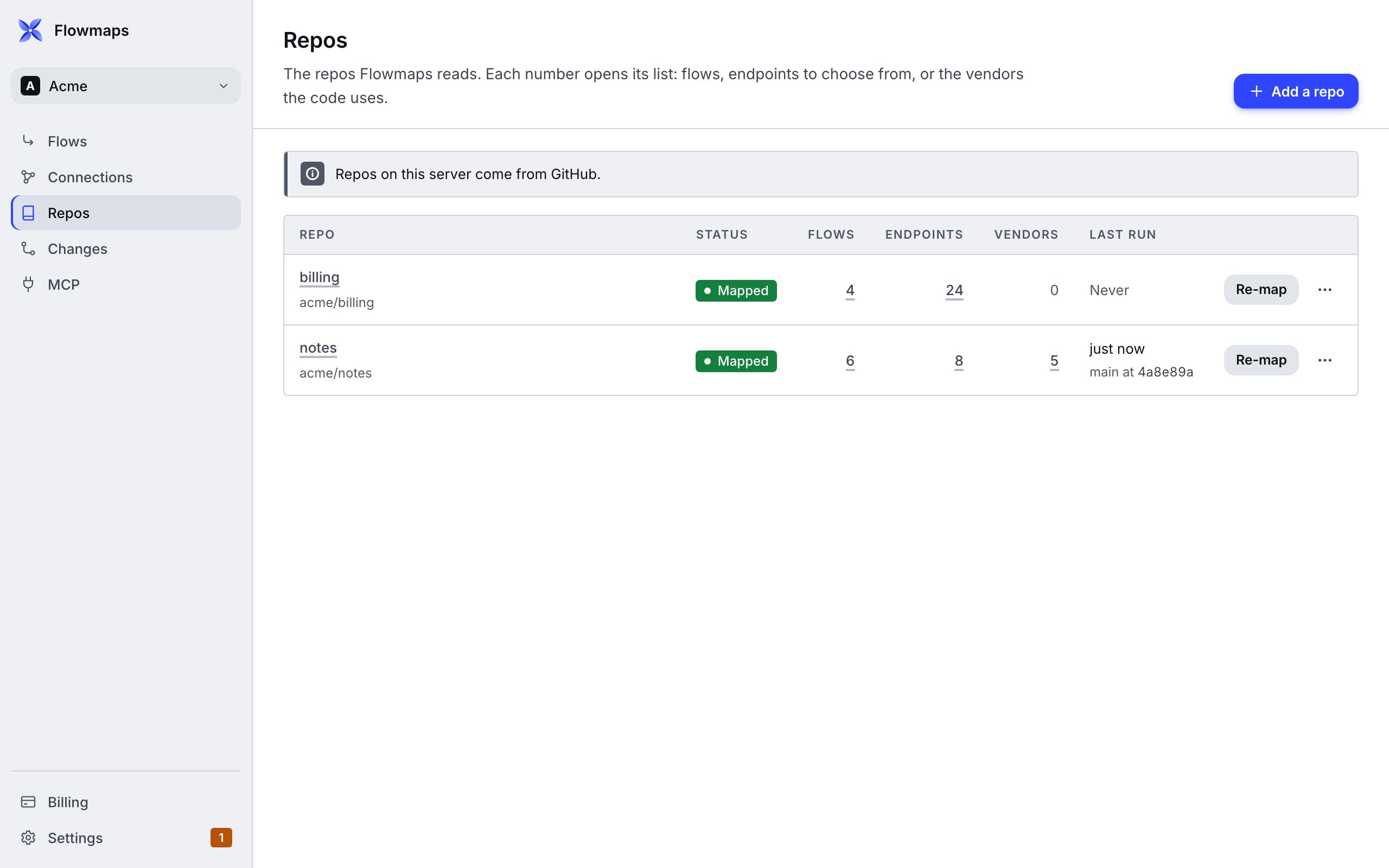
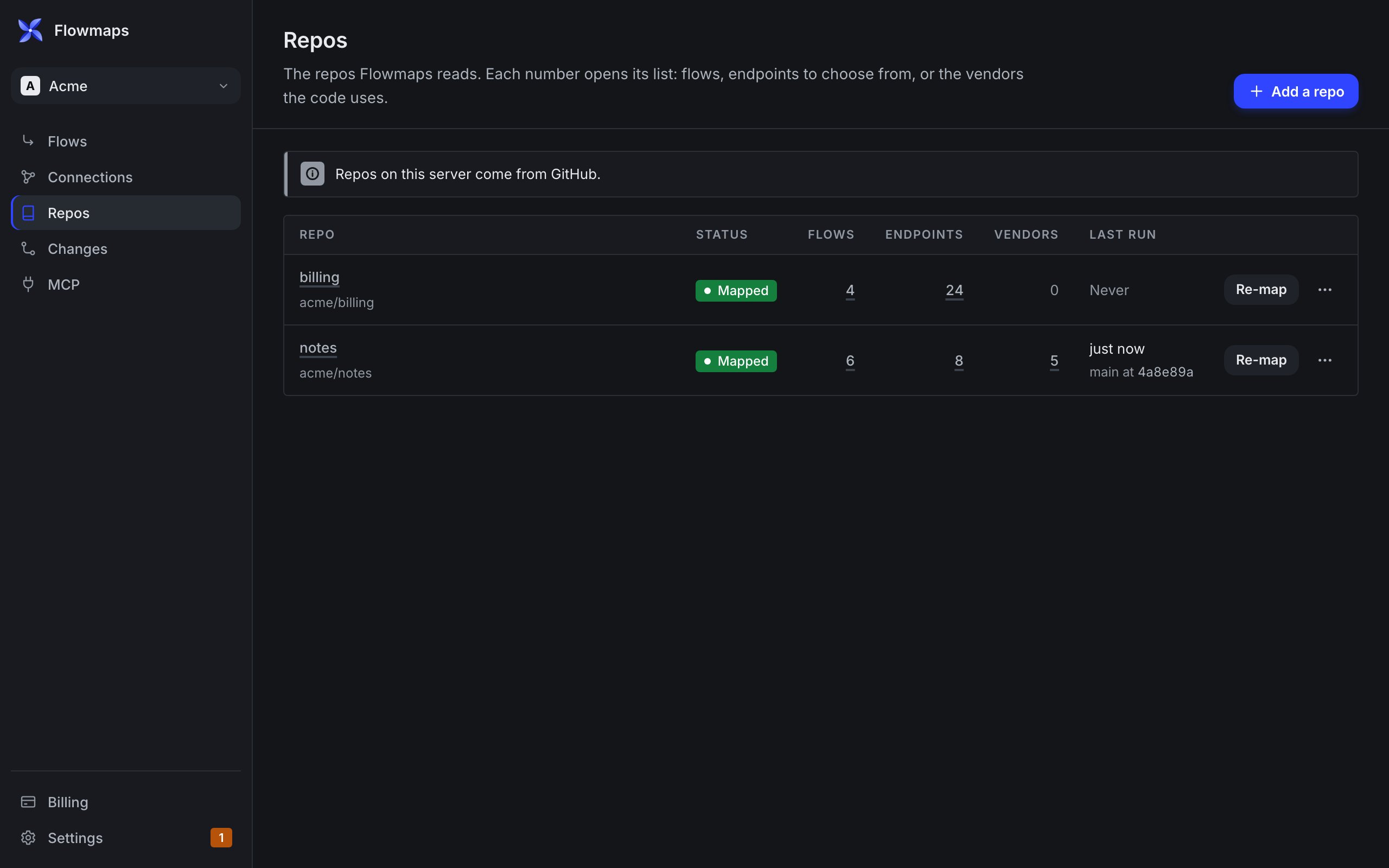
Repos: each repo with its status, counts of flows, endpoints and vendors, and its last run.
The Add a repo list
Once you’ve linked GitHub, the foot of the dialog says “Linked as (your login)”, with Refresh from GitHub and Install on another org.- One GitHub account or organization at a time. When Flowmaps Bot is installed in more than one place you can read, a picker at the top switches between them. Each shows whether the App covers All repositories or Selected repositories, and Suspended on GitHub if an owner suspended it there.
- Only repos you can read. A repo the App reaches but your GitHub account can’t read isn’t listed. When there are none, the dialog says “No repos here that you can read on GitHub.”
- What each row shows. Add for a repo this workspace doesn’t have, Added for one it has, and Reconnect for one that was disconnected. In and a workspace’s name means another workspace of the same account already has it: a repo sits in one workspace of each account.
- Another organization. Choose Install on another org to install Flowmaps Bot on an account or organization that doesn’t have it yet.
Refresh from GitHub
Flowmaps knows where Flowmaps Bot is installed for you from what GitHub reported for your GitHub account the last time you connected. After the App is installed somewhere new, or you join an organization that has it, choose Refresh from GitHub. It goes to GitHub and back, picks up the new installs, and checks again which repos you can read. If adding a repo says “GitHub didn’t list this installation for your GitHub account when you last connected. Refresh from GitHub, then try again.”, do that.Adding more repos later
If the repo you want isn’t in the list, the App may not reach it yet. Choose Change on GitHub beside the account’s name: this opens the App’s settings for that account or organization on GitHub, where you can add repos to Only select repositories or switch to All repositories. Flowmaps then says “Saved on GitHub. Flowmaps picks up the change in a few minutes.” Return to Add a repo and choose Add.The same repo in several accounts
A GitHub repo can be added in more than one Flowmaps account: for example in your personal account, to try Flowmaps, and in your team’s account. Each account that adds it maps it, pays for that work from its own credits, and keeps its own flows and history. See Map a repo. To bring flows you already mapped in your personal account into a team without mapping again, move the workspace instead. See Move a workspace into a team.Teams
In a team, the first repo from a GitHub account or organization the team doesn’t use yet is added by one of the team’s owners or admins. After that, any member can add more repos from it. See Teams and members.Several sign-ins
Each way you sign in to Flowmaps, such as Google with one email address and GitHub with another, links GitHub on its own, and several sign-ins can link the same GitHub account. A sign-in links one GitHub account at a time: connecting a different one replaces it, and Add a repo then lists what the new one can read.When Flowmaps loses access
- You delete the repo in Flowmaps. On Repos, open the row’s menu and choose Delete repo. You need write access to the repo on GitHub. Flowmaps shows how many endpoints, flows and runs go with it before you confirm. This can’t be undone.
- The repo is removed from the App on GitHub, or the App is uninstalled. Flowmaps disconnects the repo at once and says so on its row: “Disconnected from GitHub on (date); its flows are deleted on (date) unless it’s reconnected.” Its flows are deleted 30 days after the disconnect.
- Nobody in the account can read the repo on GitHub any more, for example after everyone who could read it left the team or lost access on GitHub. Only people in the account who have linked GitHub count. Flowmaps stops its automatic work on the repo at once: merges no longer update its flows and pushes aren’t previewed. If still nobody in the account can read it 7 days later, the repo is disconnected, and its flows are deleted 30 days after that.
What the App can access
The App asks GitHub for these repository permissions:
Contents access is read-only, so the App can’t push commits or change files in your repo.
Code is fetched for each run and deleted afterwards. Flowmaps stores pointers to lines and its own descriptions, not your source. See Security and privacy.
What Flowmaps posts on GitHub
For a repo you’ve added, Flowmaps posts on each pull request that targets its default branch:- A check. Its title says the result, such as “3 flows change” or “No flows mapped in this repo yet”. When a preview hasn’t run (previews on request, a draft, a plan without previews), the check says why and, where a preview can run, offers a Preview button. Its Details link opens the pull request’s page in Flowmaps.
- One comment. When a preview finds something to report, Flowmaps posts one comment listing the flows the pull request changes, and edits that same comment on later pushes rather than adding new ones. Flowmaps may also reply with a separate comment when someone it can’t start work for asks for a preview; see PR previews.
Check names
The first Flowmaps account to add a repo posts a check named Flowmaps. Each account that adds the same repo after it posts its own check and its own comment, with a check named Flowmaps · and four characters, such as “Flowmaps · 3f9a”, so you can tell them apart. The name never includes an account’s name. Such a check appears only once its account has mapped flows in the repo and its plan previews the repo’s pull requests. An account’s check name is set when it adds the repo and doesn’t change. Pull requests that target another branch get a check that says they aren’t previewed, because Flowmaps maps the default branch. The exception is a pull request in a stack whose bottom pull request targets the default branch; see Stacked PRs. See PR previews for what the check and comment contain.Next steps
Map a repo
Find endpoints, choose which to map and follow the run.
PR previews
What the check and comment show, and who can request a preview.