

Add a repo
On Repos, choose Add a repo. If you haven’t linked your GitHub account yet, choose Connect GitHub first; see Connect GitHub. The dialog lists every repo you can read on GitHub where the Flowmaps GitHub App, Flowmaps Bot, is installed, whichever Flowmaps account you’re in. Pick the GitHub account or organization at the top if there’s more than one, search, and choose Add. The repo appears on Repos as Not mapped. Adding a repo reads no code and uses no credits; it counts toward your plan’s repos.- A repo is missing. If the App was installed somewhere new since you last connected, choose Refresh from GitHub. If it reaches only selected repos, choose Change on GitHub to add yours. See Troubleshooting.
- “In (workspace)” instead of Add. Another workspace of this account already has the repo. A repo sits in one workspace of each account, so the account never maps and pays for it twice.
- On a team, the first repo from a GitHub account or organization the team doesn’t use yet is added by an owner or admin. See Teams and members.
The same repo in several accounts
You can add a GitHub repo that’s already in another Flowmaps account, such as your personal account and your team’s. Each account maps the repo itself and pays for that work from its own credits: finding endpoints, maps, merge updates and previews. Its flows, history and settings are its own, and each account posts its own check on pull requests. Your GitHub account can add one repo to at most 3 Flowmaps accounts, counting accounts you’ve since left. Past that, adding it says “Your GitHub account already has this repo in 3 other Flowmaps accounts, the most it may.” Remove it from one of them first, or ask an admin of an account you’ve left to remove it there.The repo’s row on Repos
Each row on Repos shows the repo, a status, counts of Flows, Endpoints and Vendors (each number opens its list), the last run with its commit, and one main action:
The row’s … menu has Settings (the repo’s PR preview and model settings), Discover again, Cancel run while a run is going, and Delete repo.
Find endpoints
Choose Find endpoints on the repo’s row. The discovery page shows, live:- A clock, and the commit and branch being read.
- Four counts: Files in the repo, Chosen to read, Files read and Endpoints found.
- A bar of the chosen files by state (endpoints found, read with none, reading, waiting, not read).
- Progress: each stage with its time, from fetching the code and installing dependencies, through matching known frameworks and reading the chosen files, to checking unsure endpoints and saving the list.
- Latest: a running feed, such as “Found 4 endpoints in orders.ts”.
- The repository panel, a file tree showing what was read and where endpoints were found.
When discovery is incomplete
Sometimes discovery can’t read every file that may hold endpoints, for example when a file is too large or a limit was reached. A Discovery is incomplete banner then says how many files weren’t read and why, and lists them. You can map what was found so far, or choose Read the rest (with its estimate in credits) to read the remaining files and add what they hold to the same list. If an older version of discovery made the list, the banner offers Discover again instead. Discovery can also leave notes under the list, such as a route it couldn’t place. See What Flowmaps finds.Choose endpoints
The endpoint list is titled “Found N endpoints in (repo)” and names the commit it was read at.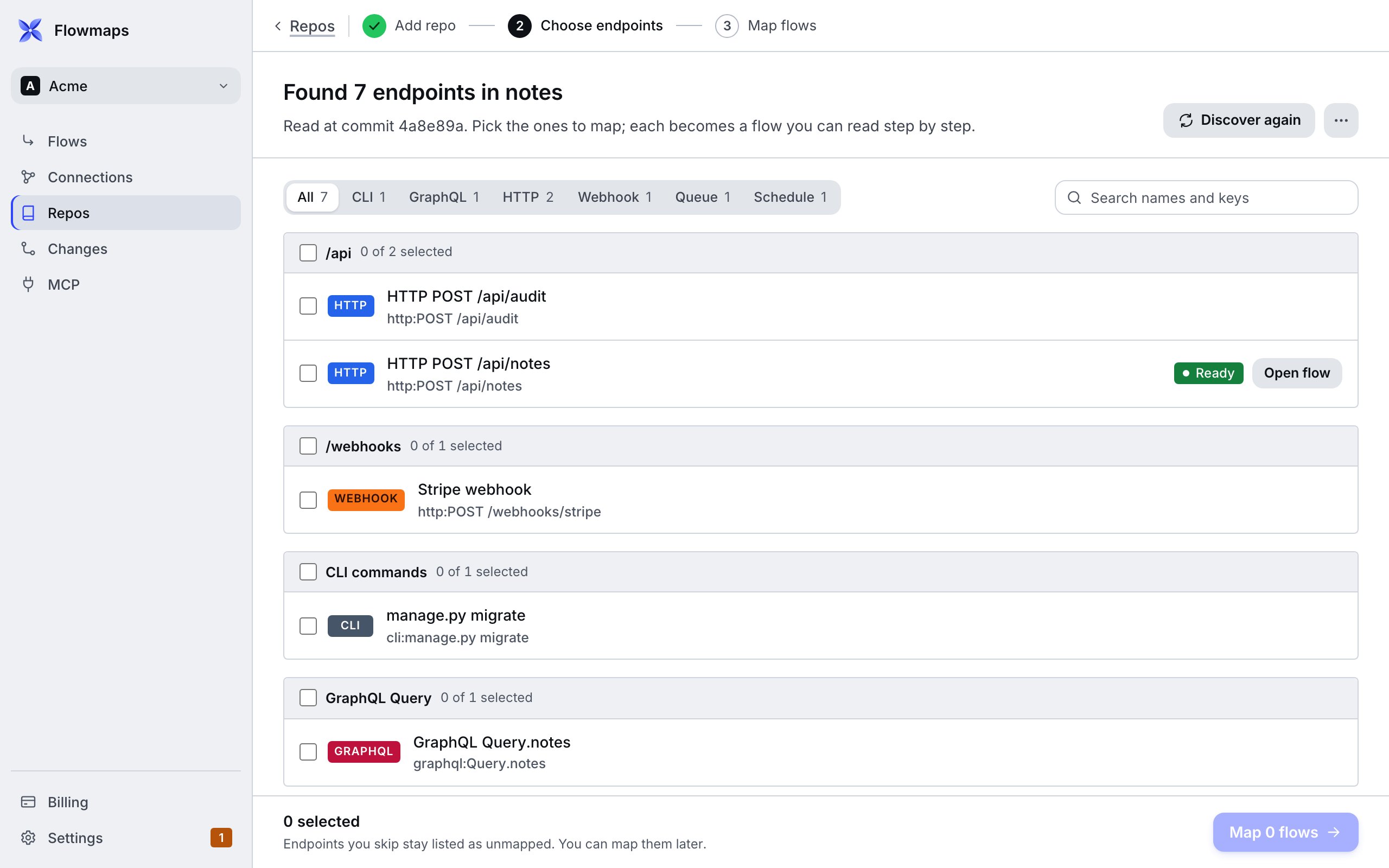
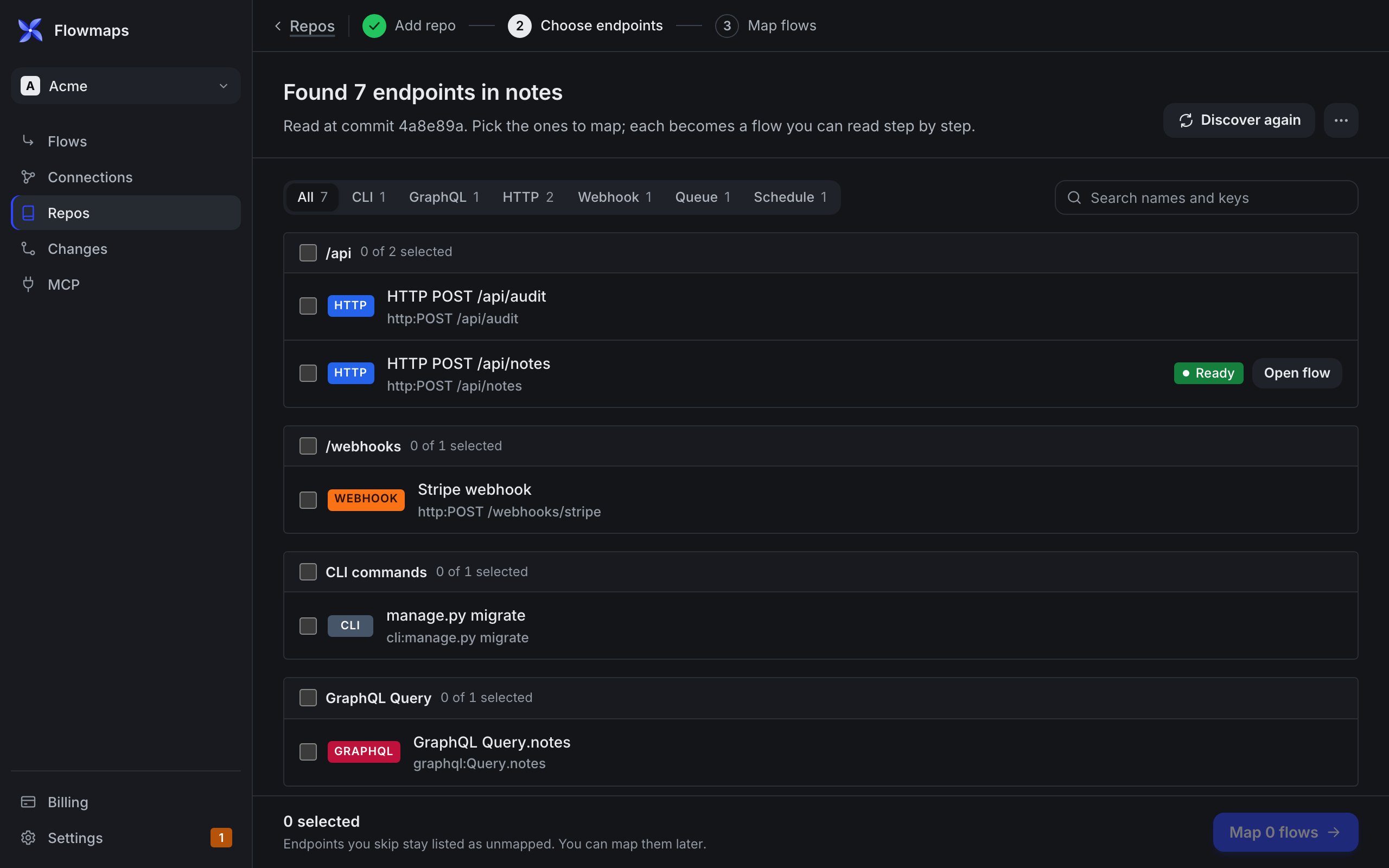
Choose endpoints: grouped by service, route prefix, queue or program, with a filter by kind.
- Filter by trigger kind (All, HTTP, RPC, Webhook, Queue, Schedule, CLI and so on), with counts, or search names and keys (two characters or more).
- Groups collect endpoints by RPC service, route prefix, GraphQL type, broker, scheduled jobs or CLI program. Tick a group’s name to select all of it; long groups show the first nine with Show N more.
- Each row shows the endpoint’s kind, name and key. An Unconfirmed badge marks one Flowmaps found by reading the code but couldn’t confirm.
- Rows already mapped show their state, such as Ready with Open flow.
Your first map is free
Your account’s first map uses no credits. It starts with your account’s first Find endpoints, which it covers too, runs on Basic models and maps up to flows on the Free plan, or up to on a paid plan. If you select more, the first ones are mapped and the rest stay unmapped for a later map. The free map is used once per account: cancelling it or deleting its flows doesn’t give it back. Later runs of Find endpoints use credits. (If the account’s data policy rules out Basic models, the first map runs on your own models and is charged.) See Credits and usage.Follow the run
The progress page is titled “Mapping N flows in (repo)”, with a clock, a Cancel run button and four counts: Flows ready, Being traced now, Files read and Steps written.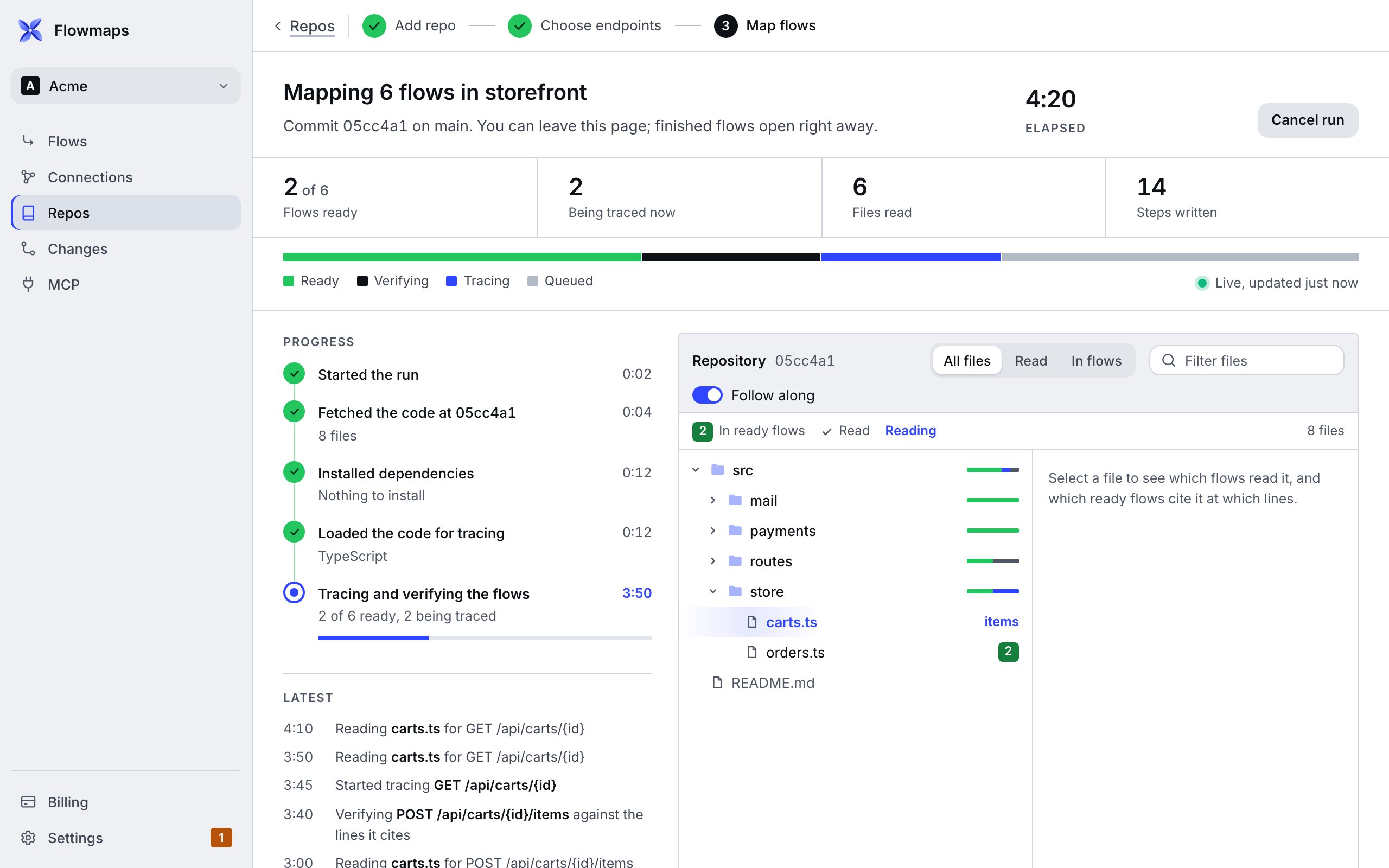
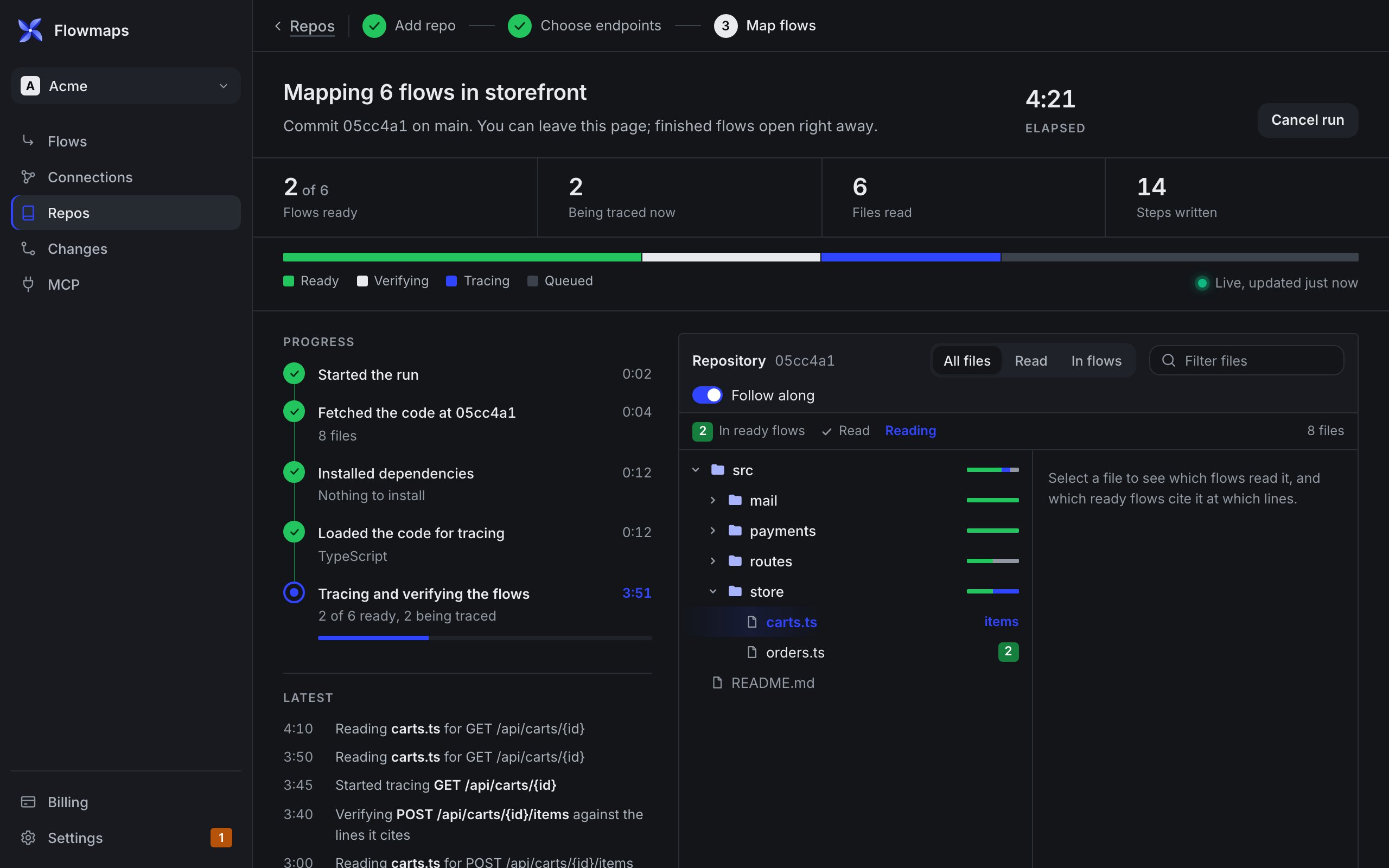
Mapping progress: counts, a bar of flows by stage, the run's progress, a live feed and the files read.
- Queued: waiting to start.
- Tracing: its calls are being followed from the handler.
- Verifying: each step is being checked against the lines it cites.
- Ready: done; Open flow opens it right away. Links to other flows fill in as more are mapped.
- Paused, Failed, Cancelled: stopped, with the reason on the row and a Retry button.
- Not mapped: the run ended before it reached this flow.
Cancel a run
Choose Cancel run. The dialog says how many flows that aren’t ready stop now; ready flows stay, and what the run used so far is still charged. Choose Cancel run to confirm or Keep running to go back. Afterwards the page says who cancelled it and offers Retry on the flows that didn’t finish.Plan limits
Each plan caps how many repos you can map and how many flows they hold in total:- Repos. When you reach the plan’s repo count, Add a repo is turned off and a note names the plan that maps more.
- Flows. Endpoints past the plan’s flow count are skipped in the run, with a reason such as “past the plan’s flows; maps up to ”.
- After a downgrade, repos past the new plan’s count keep their flows and stay readable, but their merges wait until you upgrade; their rows say “Not updating” and why. Nothing is deleted.
When credits run out
If your balance reaches zero during a run, the run pauses: the page reads “Mapping paused: out of credits”. Flows that were already ready stay. The run picks up again when credits arrive, from your next monthly grant, a credit pack or automatic top-up, and each paused flow also has a Retry button. An admin can also set a monthly limit for the account on Settings › Usage; reaching it pauses runs the same way. See Credits and usage.Next steps
Read a flow
Open a ready flow and see what each part means.
Keep flows current
Merges, re-maps and re-checks.