

The header
The header leads with the flow’s kind tag and name, such as HTTPPOST /api/orders (an RPC shows its method with the service beside it), and a button to copy its endpoint key. Under it is a one-paragraph summary of what the entry point does for its caller; choose More to expand a long one.
The strip beside the view tabs shows:
- Verified: a bar and “N of M steps”, with how many are inferred.
- Gaps: how many places the flow couldn’t follow the code, when there are any. Choose it to jump to the first.
- Behind the branch head, when the flow was mapped at an older commit than the default branch’s head. See Keeping flows current.
- Out of date, when the last merge couldn’t update this flow because credits ran out.
- Calls: the vendors the flow reaches, and the other mapped repos it calls into.
- Triggered by: the flows whose steps start this one, such as a producer that publishes the message this consumer reads. Each opens that flow at its step.
- Mapped: when, and at which commit.
- All dependencies: the repo’s external dependencies.
- Re-check steps (owners and admins): see Re-check.
- Add path facts (owners and admins, on some flows mapped before Flowmaps recorded exact paths): works out which path each step runs on, so the Cascade can draw the flow’s branches. It uses credits, and the flow stays as it is until it finishes.
- Delete flow: removes the flow; its endpoint stays listed, to map again later. You need write access to the repo on GitHub.
Cascade
The Cascade is the default view: every step as a list in the order it runs.- Setup steps, such as middleware, fold into one line at the top that you can open.
- Checks that stop the request read as one “Stops if” line; checks in a row fold together.
- Decisions branch into paths, each a block of the steps that run on it, closed by the way that path ends. A path is lettered, so its steps are numbered like “2a” and “2b”. Steps after the decision that run on every path follow under “Then, on every path”.
- Steps inside: a step can hold finer steps. Open its row to see them.
- Endings sit after the step that produces them: “Ends with” for the normal outcome, “Or ends early with” for early exits.
- An Inferred tag marks a step, or a group holding one, that a check couldn’t confirm.
- Business facts show as “N issues” and “N notes” on a step’s row. See Business facts and Issues.
Flow map
The Flow map draws the same flow as cards and arrows: the trigger, each step, branches side by side, calls out to other services and vendors, and endings. Drag cards to rearrange them (Reset layout puts them back), and use the Endings control to open or collapse every card’s endings at once. From the Cascade, a step’s Open in flow map button, or the M key, opens the map at that step.The step panel
With nothing selected, the panel beside the Cascade shows At a glance: Ways it succeeds, Ways it fails and Ways it ends, each listing outcomes with when they happen, plus Gaps. Choose an outcome to jump to where it happens. Select a step and the panel explains it: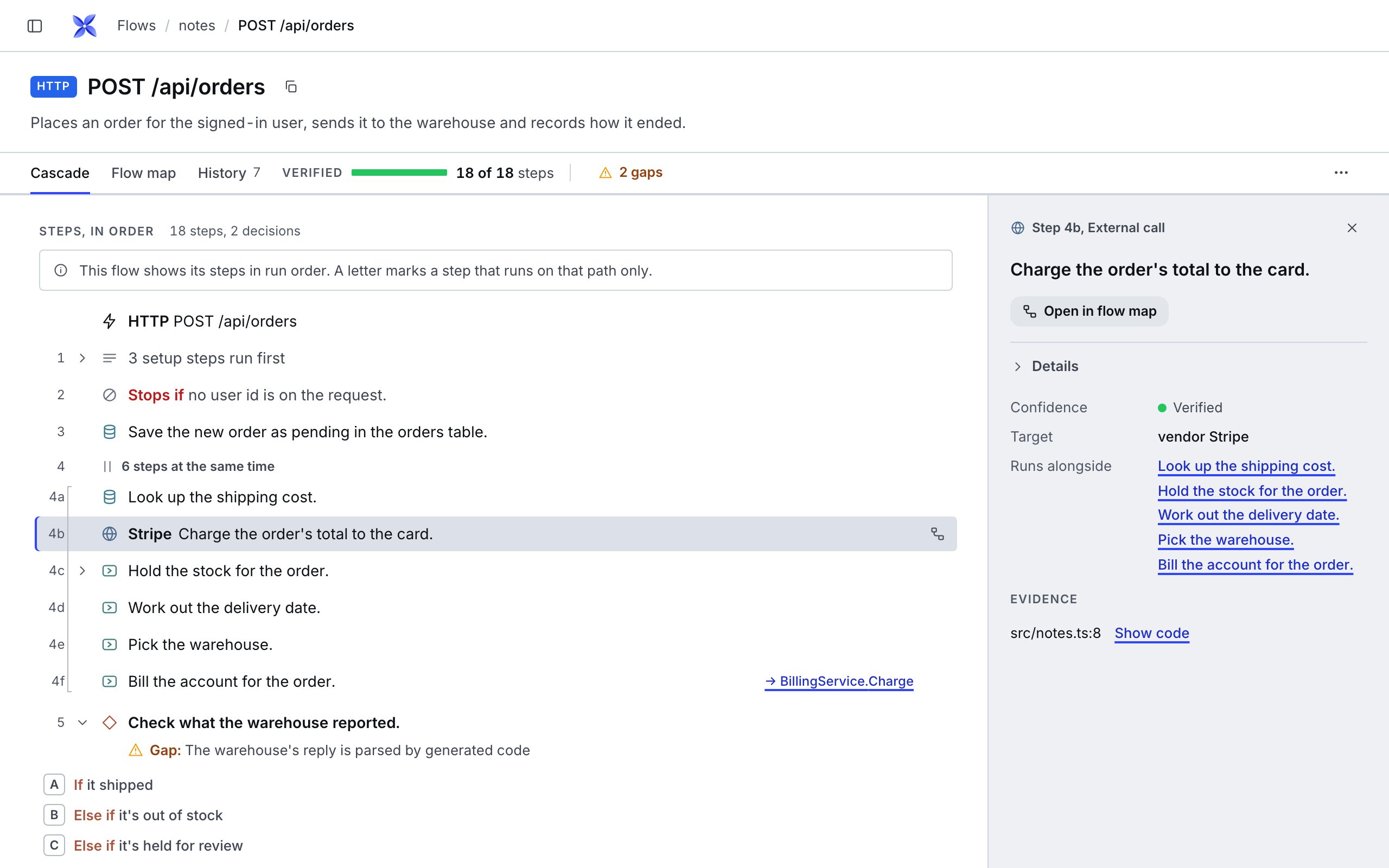
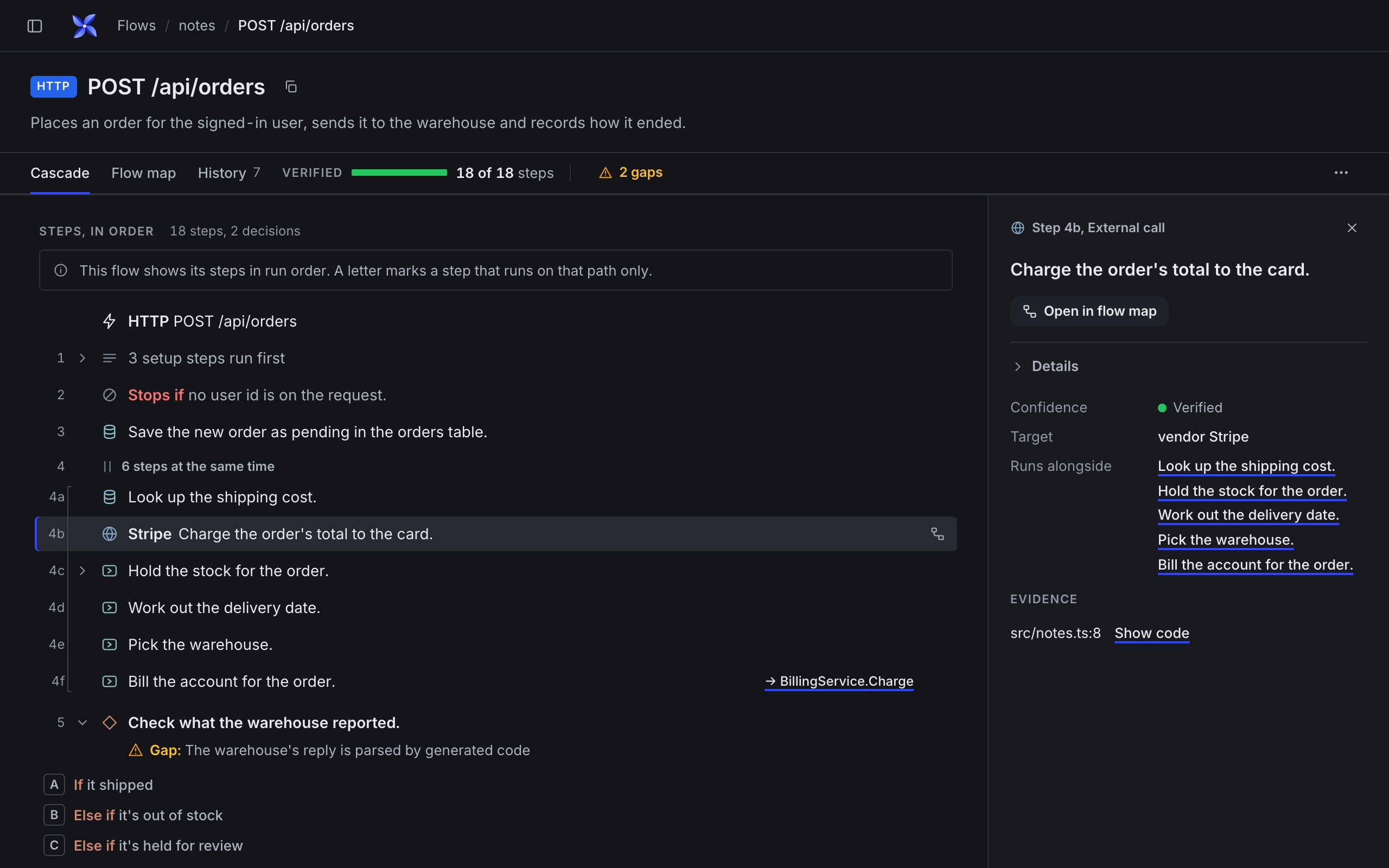
The step panel: the step's sentence, its confidence, the steps it runs alongside and the lines it cites.
- The step’s number and kind, such as “Step 4, External”, and its plain sentence as the heading.
- Logic: the step’s business facts, Issues first, when it has any.
- An explanation in a short paragraph, and Details, the specifics an engineer would check against the code.
- If this fails: what the caller gets when this step fails.
- Confidence: Verified, Inferred or Proven, or “Not verified”. An inferred step shows Why: the reason the check gave.
- Target: the endpoint key a call or message goes to, when the step leaves the service.
- Runs alongside, Inside of, On path and Ends early: links to steps that run at the same time, the step this one is part of, the path it runs on, and the endings a check can stop with.
- Failures from here go to the failure path, when shared error handling catches this step’s errors.
- Links to what the step reaches (below).
- Evidence: each cited range, with Show code.
Failure endings
A flow lists what the caller gets when things go wrong, for the failures Flowmaps found, placed on the step that fails. In the panel, a selected outcome shows When, Kind (Error or Success) and After: the step the flow has just run when it ends that way. Ways it fails in At a glance lists them all. When one piece of error handling catches several steps’ failures, such as a single catch block that returns 500, the flow shows it once as a Failure path, and each step it covers says “Failures from here go to the failure path”.Evidence and the code view
Each step’s Evidence lists the file and lines it cites, such assrc/payments/charge.ts:20-41. Choose Show code to open those lines in place, with the cited range highlighted and the file path and commit above it. The code is read from GitHub when you open it, using your access; Flowmaps doesn’t store it. A file Flowmaps never reads, such as a secrets file, shows “Code isn’t shown for this file”.
Line numbers belong to the commit the flow was mapped at. If you’re looking at a past version, the page says so, and offers Browse the code at (commit) on GitHub.
When a step runs on several paths and each path has its own code, the panel lists Code on each path.
Links to other flows and vendors
A step that calls another service, publishes a message, schedules work or calls a vendor shows where it goes:- A mapped flow: Open and the flow’s name, which opens it. The page remembers where you came from in its breadcrumb.
- An endpoint that isn’t mapped yet: Map and its key, to map it now.
- A vendor: named on the step and under Calls. A name Flowmaps doesn’t know yet says it’s a pending vendor, with a link to review it in Settings.
- A repo you can’t see on GitHub: “Links to a repo you can’t see”, and nothing more.
- No match: the target “links nowhere”, with the reason, rather than a guessed link.
Gaps
A gap marks a place Flowmaps couldn’t follow the code, so that part of the flow is marked rather than guessed. Each gap names what couldn’t be followed and the line where it stopped, with Open the gap, Go to the step and Show code. Gaps appear in At a glance, on the step they belong to, and in a “Gaps the steps don’t cover” section when they belong to no step. Treat a gap as a place to read the code yourself.Next steps
Business facts and Issues
The verified notes on what steps mean for the business.
Flow history
How a flow changed, and which PR changed it.