

- An account holds the plan, the credit balance and the people in it. Everyone has a personal account; a team is another account that several people share.
- A workspace is a named group of repos, with their flows, runs and pull requests, inside one account. An account can have up to 20 workspaces.
What belongs where
So all of an account’s workspaces share one plan and one balance, while each workspace keeps its own repos and settings. Work in a workspace is paid for by the account that owns the workspace, whoever started it.
A repo lives in one workspace of an account. Adding the same repo to a second workspace of that account isn’t allowed, so it’s never mapped and charged twice. Another account, such as a team you’re in, can add the same GitHub repo and map it separately; see The same repo in several accounts.
Switch workspaces
The workspace name at the top of the sidebar is a switcher. It lists every workspace you can open, grouped by account, followed by New workspace in the open account (for its owners and admins), New team and Workspace settings. The address in your browser includes the workspace, so a link you share opens the right one, and two browser tabs can show two different workspaces.Create a workspace
1
Open the switcher
Open a workspace of the account the new one should belong to, choose the workspace name at the top of the sidebar, then New workspace in that account. Only the account’s owners and admins can create workspaces.
2
Name it
Give it a name, such as “Side projects”, and choose Create workspace.
3
Add repos
The new workspace starts empty, on Flowmaps’ default settings. Add repos from Repos. See Add a repo and map it.
Rename or delete a workspace
Owners and admins of the account can change a workspace in Settings › Workspace.- Rename — change Workspace name and choose Save.
- Delete workspace — removes the workspace with its vendors and model choices. Delete its repos first. An account’s last workspace can’t be deleted.
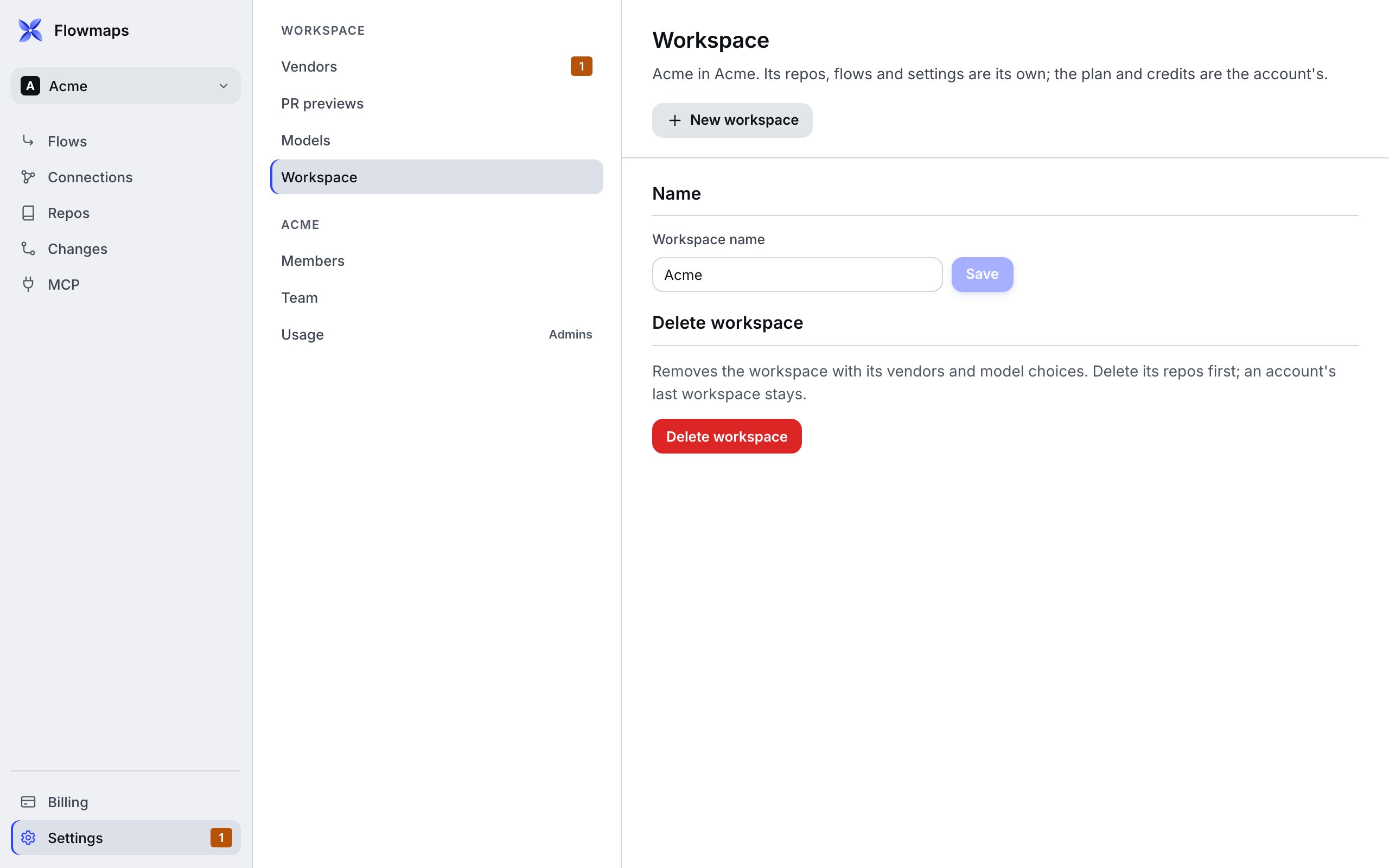
Settings › Workspace, where admins rename or delete a workspace.
Move a workspace into a team
Move to team takes a workspace from your personal account into a team, with its repos, flows and history as they are. Nothing is mapped again, so it costs no credits. Use it when you tried Flowmaps in your personal account and now want your team to have that work. You could instead add the same repos again in the team, but the team would then find endpoints and map every flow afresh, and pay for it in credits, while your personal copies stay where they are. See The same repo in several accounts.Who can move a workspace
The owner of the personal account, who must also be an owner or admin of the team. Workspaces only move from a personal account into a team, not between teams or back.1
Have a team
If you aren’t in one yet, start one with New team in the workspace menu. See Teams and members.
2
Open Move to team
Open the personal workspace you want to move, go to Settings › Workspace, and under Move to a team choose Move to team. Only the personal account’s owner sees this section.
3
Pick the team and check what moves
The dialog lists your teams. A team you can’t move into can’t be picked, and shows the reason. For the team you pick, it shows what moves and what stays.
4
Move it
Choose Move to (team). The workspace opens again, now as the team’s.
What moves and what stays
- Moves to the team: the workspace’s repos and their flows, as they are, and their history, vendors and settings. The repos stay connected to GitHub and keep the same check on pull requests.
- Stays with you: your plan and your other workspaces, or a new empty workspace if this was your last one. The credits already spent in the workspace stay on your personal account’s usage, and your account’s free first map stays used.
- From then on, the team pays for the workspace’s work, and the team’s rules apply: its plan, its data policy, and who can start work from GitHub.
When a workspace can’t move
The dialog says why, and the move is refused, when:- Work is still going. “A map or preview in this workspace hasn’t finished: it is running, waiting for you to pick what to map, or paused for credits. Finish or cancel it, then move the workspace.” Work Flowmaps has queued for its repos also holds a move back for a few minutes.
- The team already has one of its repos. “(Team) already has (repo). Remove it from this workspace, or from (team), first.”
- The team’s plan has no room for the workspace’s repos or flows, such as “(Team)‘s (plan) plan maps up to (number) repos; with this workspace it would have (number).”
- The team already has a workspace with the same name (rename this one first), or already has 20 workspaces.
Who sees what
Being in an account lets you open its workspaces. Inside a workspace, you see the flows of repos your own linked GitHub account can read. If a teammate’s repo doesn’t show for you, link GitHub (see Connect GitHub) or ask for access to the repo on GitHub.Next steps
Teams and members
Invite people and manage roles and seats.
Repo settings
PR previews and models for each repo.